


Why a Quest 2 Virtual Desktop Setup Unlocks True Wireless Freedom
A Quest 2 virtual desktop setup lets you play demanding PC VR games wirelessly, freeing you to move naturally in virtual worlds. This freedom is a game-changer for room-scale experiences. Imagine physically ducking behind cover in a shooter, spinning 360 degrees to track an enemy, or freely walking around an intricate puzzle room without the constant fear of tripping over or yanking a cord. That's the promise of a well-configured wireless setup. Here's what you need to get started:
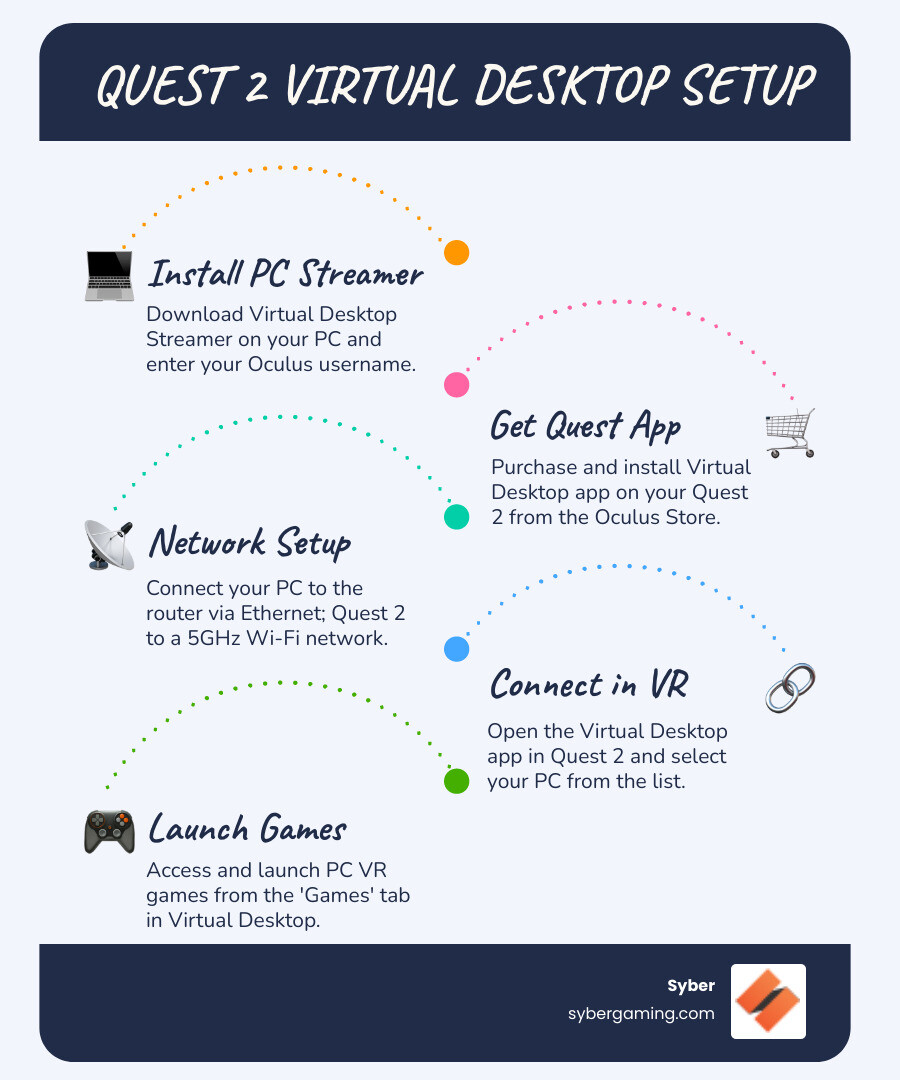
Quick Setup Overview:
- Purchase Virtual Desktop from the Quest Store
- Download Virtual Desktop Streamer on your gaming PC
- Connect your PC to router via Ethernet cable
- Join Quest 2 to your 5GHz Wi-Fi network
- Launch games from the Virtual Desktop menu
Requirements:
- VR-ready gaming PC (GTX 970 or better)
- 5GHz AC or AX Wi-Fi router
- Meta Quest 2 headset
- Ethernet cable for PC connection
If you've been tethered to a cable, you know the frustration of tangled cords and limited play space. Virtual Desktop streams your PC's full VR capabilities to your Quest 2, giving you the graphics power of a high performance gaming pc without the cable. You get access to your entire SteamVR and Oculus Rift library while moving freely.
This guide walks you through the 15-minute setup, from hardware requirements to network optimization. Getting your Quest 2 virtual desktop setup right means better visuals and lower latency, whether you're using a custom build gaming pc or exploring AI-improved gaming performance.
Introduction to Wireless PC VR
The Meta Quest 2 is a great standalone headset, but PC VR titles like Half-Life: Alyx offer the best graphics. Traditionally, accessing these games required a USB-C cable with Oculus Link, which limits movement. While Meta's wireless Air Link is a built-in option, many VR enthusiasts prefer Virtual Desktop for its robust feature set and granular control.
This is where Virtual Desktop shines. It often provides a more stable, low-latency connection and gives users access to a wider range of settings to fine-tune the experience. This includes detailed performance overlays, multiple streaming codecs, and environment options that are not available with Air Link. This level of control is what makes it a favorite in the PC VR community.
What is Virtual Desktop?
Virtual Desktop streams PC VR games wirelessly to your Quest 2. It works by installing a streamer app on your high performance gaming pc and the main app on your headset. Your PC does more than just run the game; it must also compress and encode the video stream in real-time before sending it over your Wi-Fi network. This encoding process is a demanding task that relies heavily on your graphics card's dedicated hardware encoders (like NVIDIA's NVENC or AMD's VCN). A modern, AI-ready gaming PC with a powerful GPU excels at this, ensuring the video is compressed efficiently without adding significant latency. The Quest 2 then decodes this stream and displays the image, all while sending your head and controller movements back to the PC. The entire round-trip happens in milliseconds, resulting in true wireless freedom and access to a huge library of PC VR content. For those serious about Virtual Reality Done Right - The Syber Way, a proper quest 2 virtual desktop setup is key.
Hardware and Software Checklist
Before starting, ensure you have the right gear for a smooth quest 2 virtual desktop setup:
- Meta Quest 2 Headset: Charged and updated.
- Gaming PC: A VR-ready PC is critical. An NVIDIA GTX 970 is the minimum, but for a great experience, a custom build gaming pc with an RTX 2060 or better is recommended. Your PC should be an AI-ready gaming PC to handle both rendering and encoding.
- Wi-Fi Router: A 5GHz Wi-Fi 5 (AC) or Wi-Fi 6 (AX) router is essential for low latency.
- Ethernet Cable: Your high performance desktop pc must be connected to your router with an Ethernet cable for a stable connection.
- Software: You'll need to purchase Virtual Desktop on the Oculus Quest 2 store, download the free Virtual Desktop streamer app for your PC, and have the Oculus PC app and Steam/SteamVR installed.
The Complete Quest 2 Virtual Desktop Setup Guide
With your gear ready, it's time to connect everything. This quest 2 virtual desktop setup process takes about 15 minutes and gives you wireless access to your entire PC VR library. We'll install software on your PC and Quest 2, then link them over your network.
Step 1: Your PC-Side Quest 2 Virtual Desktop Setup
First, prepare your high performance gaming pc to stream VR content.
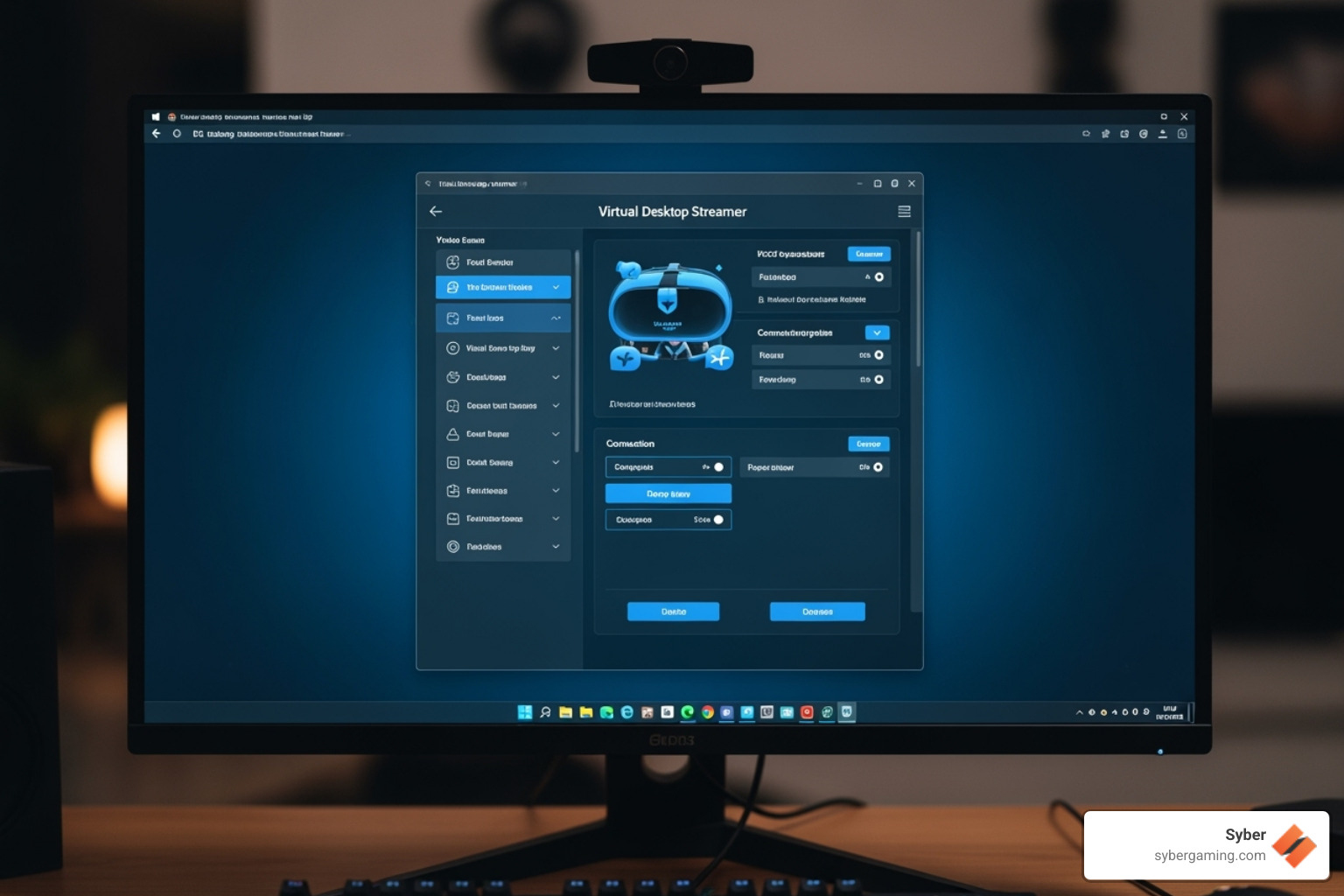
- Download and Install: Get the Virtual Desktop Streamer app for Windows 10/11 and run the installer.
- Enter Username: Launch the Streamer app and enter your exact Oculus username to link your PC to your headset.
- Check Requirements: Ensure your PC has the Oculus PC app installed and your graphics drivers are up to date. For Windows 'N' editions, you'll need the Media Feature Pack.
- Connect via Ethernet: This is critical. Plug your high performance desktop pc directly into your router with an Ethernet cable. Do not use Wi-Fi on your PC.
- Keep it Running: Leave the Virtual Desktop Streamer app running in the background.
Step 2: Installing the App on Your Quest 2
Now, let's get your headset ready.
- Connect to Wi-Fi: On your Quest 2, connect to the 5GHz band of your Wi-Fi network. This must be the same network your PC is connected to.
- Purchase and Install: Open the Oculus Store on your headset, search for "Virtual Desktop," and purchase the Quest version. The app will download and install automatically.
Step 3: Connecting and Launching PC VR Games
This is the final step to link everything and start playing.
- Launch Virtual Desktop on Quest 2: Open the app from your Quest 2 library. Your PC should appear in the list; select it to connect.
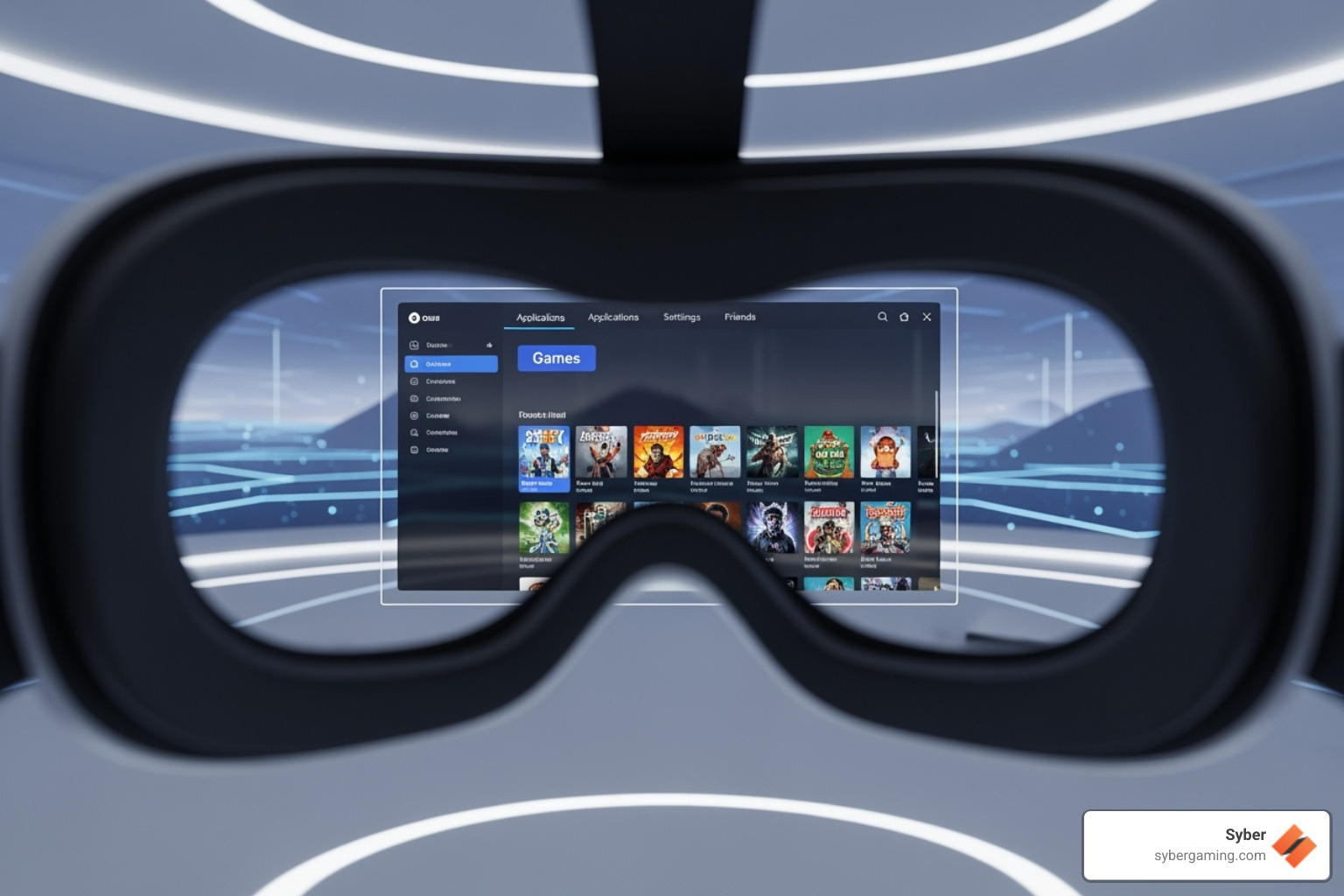
- Open the Games Tab: Once connected, press the menu button on your left Quest controller to open the Virtual Desktop menu.
- Launch a Game: Steer to the Games tab. Virtual Desktop automatically finds your installed SteamVR and Oculus Rift games. Select a game from this list to launch it for the best performance.
You are now ready to enjoy wireless PC VR Gaming. Your gaming pc high performance hardware is streaming directly to your headset, giving you freedom of movement.
Optimizing Your AI-Improved Gaming Experience
Getting connected is the first step; optimization is where the magic happens. Fine-tuning your settings allows your high performance gaming pc to deliver visuals and responsiveness that can rival a wired connection. A few tweaks to your Quest 2 virtual desktop setup can transform your experience, especially when leveraging the AI-driven performance of modern gaming rigs.
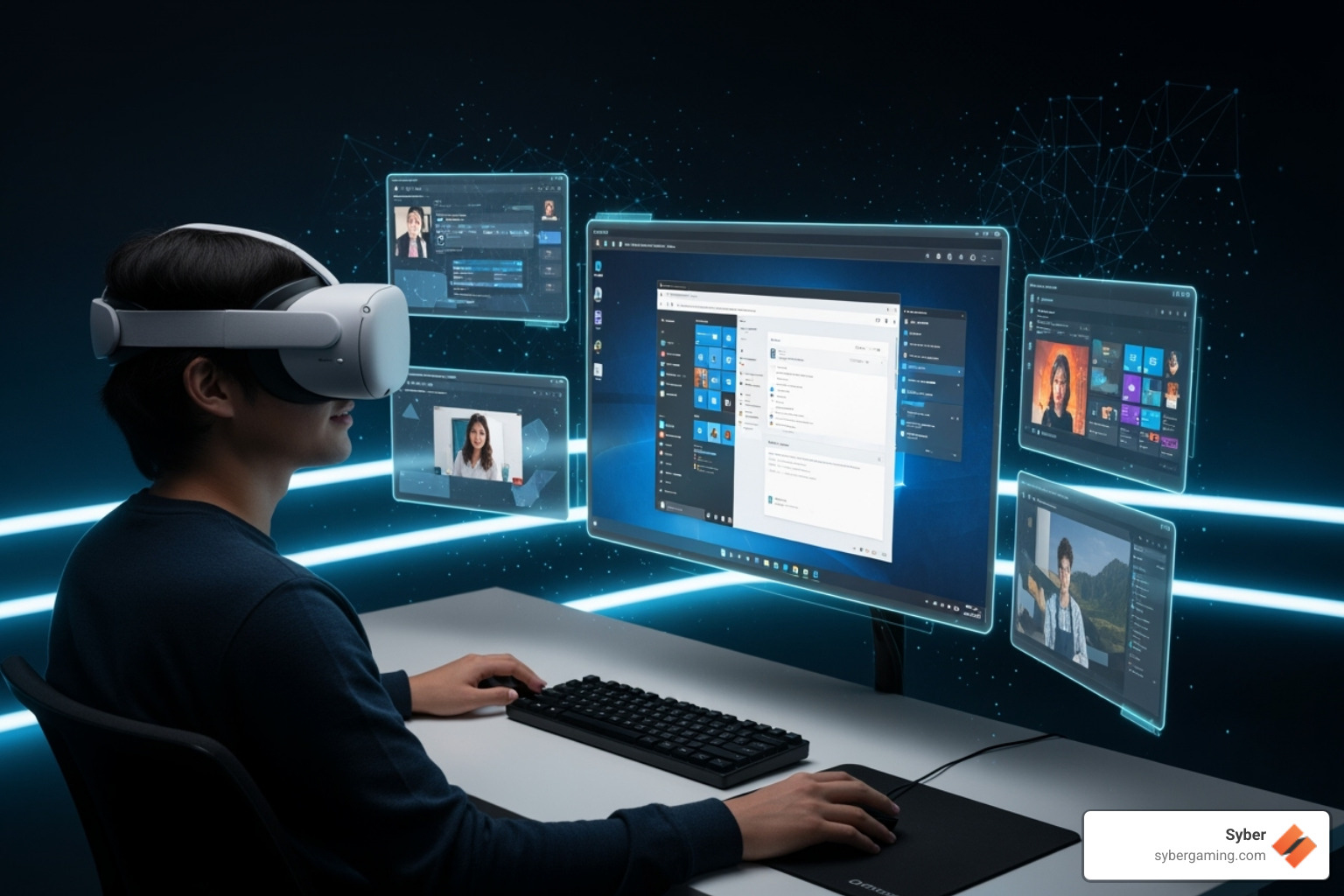
Fine-Tuning Your Quest 2 Virtual Desktop Setup for Peak Performance
Inside Virtual Desktop's "Streaming" tab, you can balance visual quality and performance to make your AI gaming PC shine. Key settings include:
- VR Graphics Quality: Your main dial for visual fidelity vs. performance. Use the table below to match it to your PC's specs.
| Setting | Impact on Visuals | Impact on Performance | Recommended PC Specs |
|---|---|---|---|
| Low | Lower resolution, less detail | Smoothest performance, lowest latency | GTX 970 equivalent |
| Medium | Good resolution, decent detail | Balanced performance | RTX 2060 / RX 5600 XT equivalent |
| High | High resolution, good detail | Demanding for GPU and network | RTX 3060 / RX 6600 XT equivalent |
| Ultra | Very high resolution, sharp detail | Very demanding, requires powerful PC and network | RTX 3080 / RX 6800 XT equivalent or higher |
- VR Bitrate: This setting determines the amount of data used to stream the video to your headset, measured in megabits per second (Mbps). A higher bitrate results in a clearer, less compressed image with fewer artifacts, but it requires a very stable and fast Wi-Fi connection. A lower bitrate is more forgiving on your network but may introduce blockiness or blurriness during fast motion. Start around 90 Mbps and observe the image quality. If you experience stuttering or lag, lower the bitrate in increments of 10 until the stream is smooth.
- Refresh Rate: This matches the headset's display refresh rate, measured in Hertz (Hz). Higher values like 90Hz or 120Hz provide a smoother and more comfortable visual experience. However, this also means your PC must be able to consistently render that many frames per second. If your PC can't keep up, you'll experience stuttering. It's better to have a stable 72Hz or 80Hz experience than a stuttering 90Hz one. Choose a rate that your high performance gaming pc can reliably maintain.
- Snapdragon Game Super Resolution: Enable for AI-improved visuals that sharpen the image with minimal performance cost.
- Codec: A codec is the technology used to compress and decompress the video stream. HEVC (H.265) is a highly efficient codec that offers great quality and is supported by most modern graphics cards. For those with the latest hardware, such as NVIDIA RTX 40-series or AMD RX 7000-series GPUs, the AV1 codec is the top choice. AV1 provides even better compression, meaning it can deliver a higher quality image at the same bitrate compared to HEVC. This is a prime example of how an AI-ready gaming PC with cutting-edge hardware can directly improve your wireless VR experience.
Common Issues and Quick Fixes
Even a perfect setup can have hiccups. Here are some quick solutions:
- Connection Problems: Ensure your PC and Quest 2 are on the same 5GHz network. Disable VPNs and check firewall/antivirus exceptions. A simple restart of both devices can also work.
- Black Screens: Make sure your monitor is on and detected by Windows. Update GPU drivers and disable color-shifting apps like Night Light.
- Choppy Performance: This is usually your network. Use an Ethernet cable for your PC. Keep the router in the same room as your play area with a clear line of sight. Reduce other traffic on your 5GHz band.
- Audio Issues: If you have video but no sound in your headset, the audio might be playing through your PC speakers. Right-click the speaker icon on your Windows taskbar, open 'Sound settings,' and make sure the output device is set to 'Virtual Desktop Audio' or your default system speakers.
If your GPU usage is constantly at 100%, your system is the bottleneck. Lower the VR Graphics Quality or in-game settings. If you're still hitting limits, it may be time to upgrade to a high performance gaming pc build. Following good practices, like those in HTC Vive Best Practices: Enjoy VR Safely, also helps.
Syber's pre built gaming computers are tested to handle demanding wireless VR. Explore high-performance gaming PCs built for modern VR Gaming.
Conclusion
By following this guide, you have unlocked the true potential of wireless PC VR. A successful Quest 2 virtual desktop setup hinges on a few core principles: a powerful high performance gaming pc connected directly to your router via an Ethernet cable, a dedicated 5GHz Wi-Fi network for your Quest 2, and careful optimization of your streaming settings. This combination transforms your standalone headset into a wireless gateway to the most graphically impressive titles in virtual reality, all without the restriction of a physical cable.
The key to an immersive, lag-free session is the right hardware. A solid network and a powerful PC make all the difference. If your current system struggles with high-quality wireless streaming, it might be holding you back. Syber's pre built gaming computers are rigorously tested for demanding VR workloads, ensuring they can handle everything from AI-improved visuals to high-framerate gaming.
Don't let your hardware limit your adventures. The freedom to move naturally in VR changes the game entirely. Ready to experience wireless PC VR without compromise?
Explore Syber's high performance custom prebuilt gaming pc options, from the Cube Series to the M-Series. Find the perfect VR-ready system at Syber Gaming or browse our full range of VR-ready systems.
Your next level of VR gaming is waiting. No cables required.


.svg)

